
Appearance
Admin – Print
Common end-to-end flows for processing requests quickly and consistently.
Print a receipt or request sheet
- Use Print → Print Receipt for the customer copy (QR + summary).
- Use Print → Print Request for internal handling.
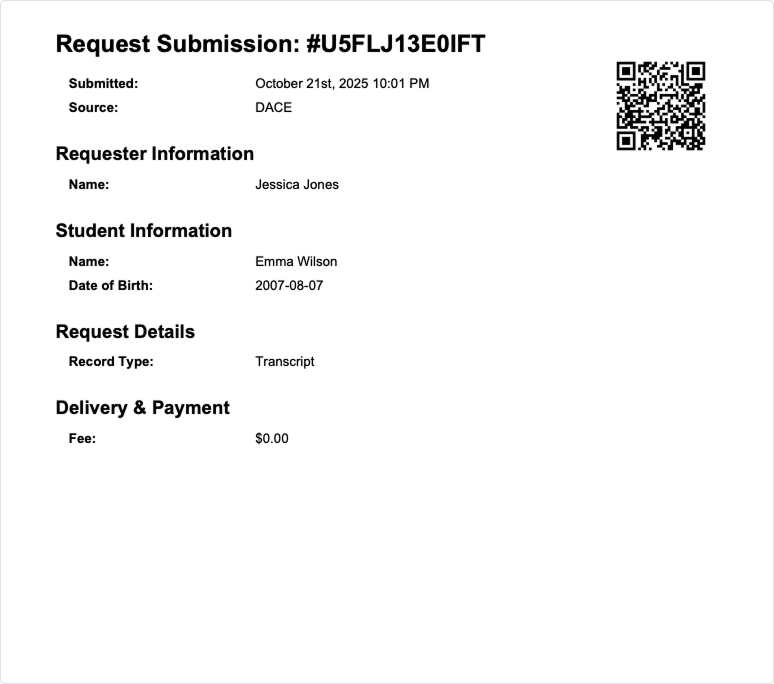
Receipt example
How to Print a Mail Order Envelope
Locate the Recipient Section
Navigate to the specific request int he Admin Queue. Scroll down to the Recipients for this Transaction section. Here you will see the recipient's name and hte validated mailing address.
Generate the Envelope PDF
Click the blue PRINT ENVELOPE button located to the right of the recipient's name.
Note: A new browser tab will automatically open, displaying a PDF preview of the envelope.
Review the Layout
Ensure the return address and the recipient's address are correctly postioned on the digital envelope preview.
Print the Document
Click the Print icon in the top right corner of the PDF viewer.
Ensure your printer is loaded with the correct envelope size.
Check your local print settings to ensure the orientation matches you printer's manual feed.